树莓派zero w无显示器上手指南
内存条比金子还贵
最近某个同事生日,想要一个桌面摄像头作为打卡设备作为生日礼物。于是去海鲜市场淘了一套树莓派zero w搭配ov5647摄像头和tf卡套装。可惜的是没有电源线和GPIO卡针。不过也已经够用了,卖家发货时预装了raspbian buster系统,还把wpa_supplicant预设了一个wifi名称和密码,更改家用Wi-Fi的名称和密码后可以直接连上。但是翻了一下我的库存之后,发现还有一个早年诺基亚手机的数据连接线:
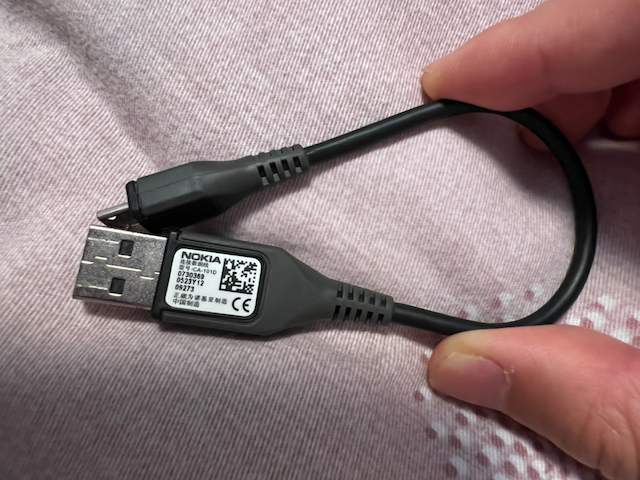
于是开始折腾起来。经过一番搜索,我发现了一个知乎上的帖子和一个博客园的帖子,只需要这个数据线就可以连接和开机。当然这个博客园的帖子更加简洁,而且给了windows下驱动的资源。总结一下步骤:
- 在boot分区下编辑config.txt 文件末尾增加一行
dtoverlay=dwc2- 在boot分区下编辑cmdline.txt 找到rootwait 在后面插入
modules-load=dwc2,g_ether- 新建一个空文件名为ssh
- Win10下载驱动 链接:https://pan.baidu.com/s/1OiVzhoujQHD4is-H4vr8gA 提取码:skkk 备用链接
- 插入树莓派到USB口,设备管理器里自动识别成串口,右键更新驱动,安装下好的驱动。
- putty访问 [email protected] 端口22 输入密码raspberry
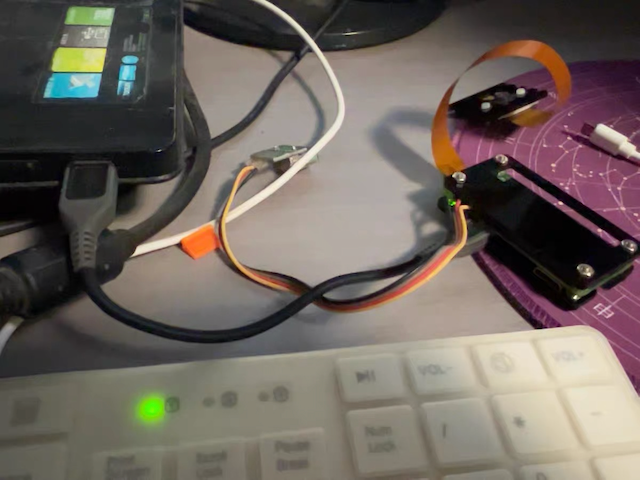
千万记得用数据线而不是电源线连靠近mini HDMI的接口,连接好后的状态如图:
 通过ssh打开
/etc/wpa_supplicant/wpa_supplicant.conf配置wifi网络类似格式如下:
network={
    ssid="ommo"
    psk="12345678"
    key_mgmt=WPA-PSK
}
然后重启就自动连接Wi-Fi网络了。此时就可以通过无线网来进行ssh访问了,输入ip a命令,记下IP地址即可。接下来测试摄像头,首先用sudo raspi-config选择Interface后打开camera,然后重启。
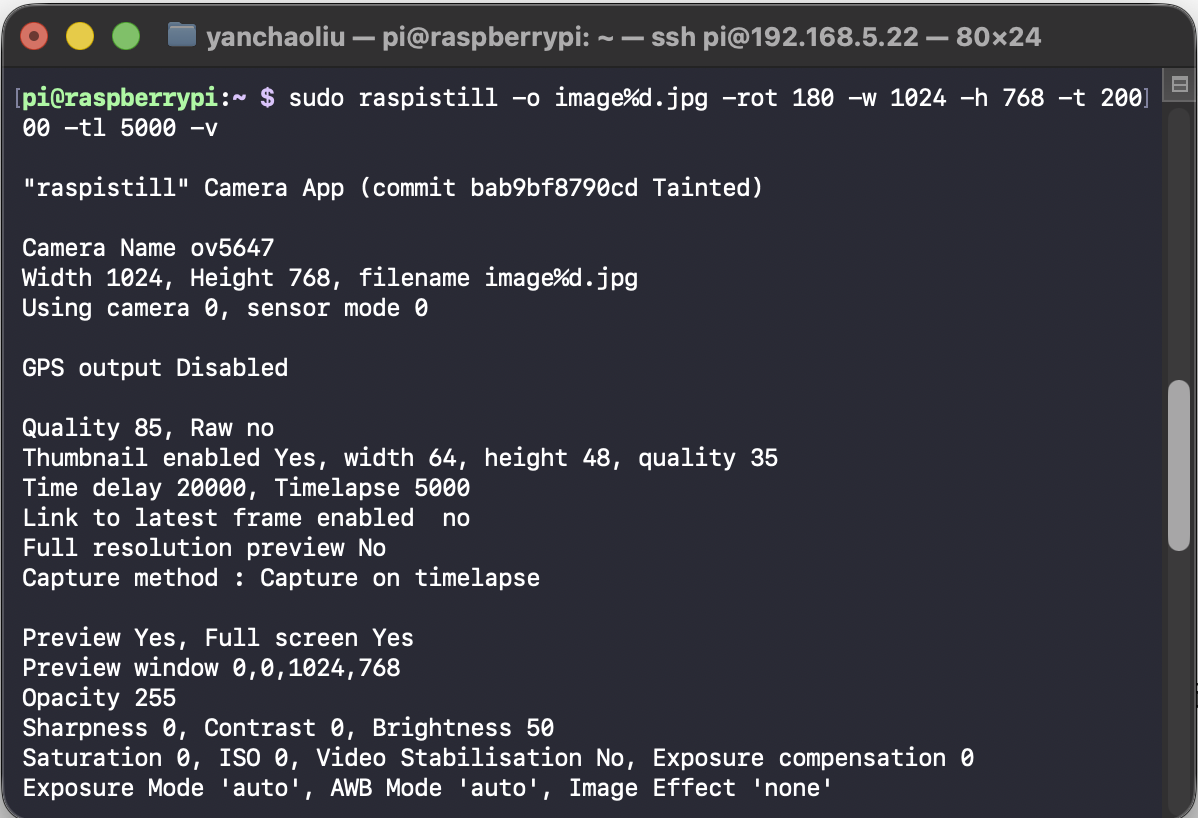
通过命令lsb_release -a来查看版本,因为这里预装了buster,所以摄像头的拍摄命令是raspistill,参考这里使用下面的命令拍摄试一下:
sudo raspistill -o image%d.jpg -rot 180 -w 1024 -h 768 -t 20000 -tl 5000 -v
可以看到顺利输出:
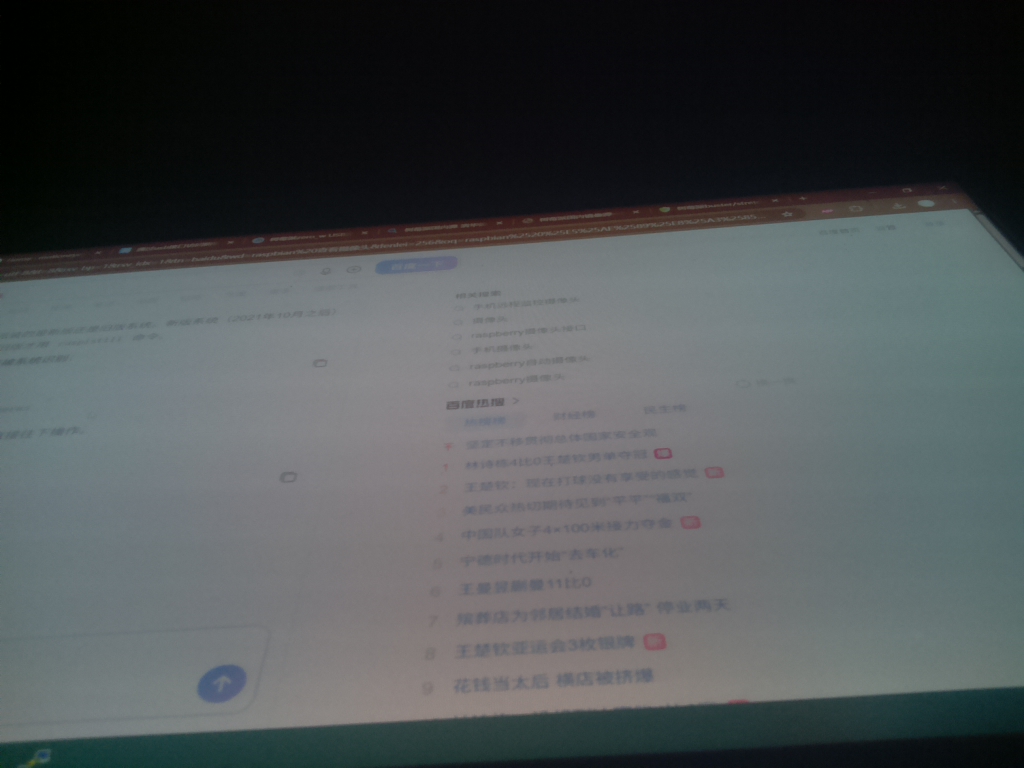
 最后是摄像头的拍摄图片:
更新一下bookworm之后版本的摄像头使用,回答来自Google Gemini。
Setting up Motion on Raspberry Pi OS Bookworm requires a few extra steps compared to older OS versions. Because Bookworm natively uses the modern libcamera stack, legacy Video4Linux2 (V4L2) software like Motion cannot talk to the camera directly. [1, 2] To bridge this gap, you must use a compatibility tool called libcamerify. [3, 4]
Step 1: Install Motion and V4L2 Compatibility Tools
Open a terminal on your Pi and install Motion alongside the tools required to map your camera into a legacy V4L2 format: [1, 4]
sudo apt update sudo apt install motion libcamera-v4l2 libcamera-tools libcamerify -y
Step 2: Configure Motion
Open the primary configuration file with the nano text editor: [5]
sudo nano /etc/motion/motion.conf
Scroll through or use Ctrl + W to find and modify these essential parameters: [5]
- daemon on: Set this to on if you want it running as a system service in the background.
- video_device /dev/video0: Ensure this is pointed to your primary video device slot.
- stream_localhost off: Change from on to off so you can view the video feed from other devices on your local Wi-Fi network.
- width and height: Change these values to match your specific camera module’s aspect ratio or resolution (e.g., width 640 and height 480 for a fast, low-bandwidth stream). [3, 5, 6, 7, 8, 9, 10]
Save and exit the file by pressing Ctrl + X, then Y, and then Enter. [9]
Step 3: Test Motion from the Terminal
Before configuring it to run automatically, test it using libcamerify to ensure the pipeline intercepts the video feed properly: [1, 3]
sudo libcamerify motion
If you see text outputs detailing that the stream has started, open a web browser on any computer connected to the same network and navigate to your Raspberry Pi’s IP address on port 8081 (e.g., http://192.168.1.100:8081). [9] Press Ctrl + C in your terminal to stop the manual test.
Step 4: Configure Motion to Run at Boot via systemd
To ensure Motion works automatically when the Pi powers on, its system daemon script needs to be intercepted by libcamerify. [4, 11]
- Edit the systemd service file:
sudo nano /lib/systemd/system/motion.service
- Modify the startup execution command: Find the line starting with ExecStart= and modify it so it explicitly prefixes the command with /usr/bin/libcamerify:
ExecStart=/usr/bin/libcamerify /usr/bin/motion
- Reload systemd, enable, and start the service: [11, 12]
sudo systemctl daemon-reload sudo systemctl enable motion sudo systemctl start motion
You can verify that your webcam server is running seamlessly by entering sudo systemctl status motion. [7, 9] If you open your web stream and see a blank or gray screen, let me know:
- What exact error message appears when running sudo libcamerify motion manually?
- Whether you are using a CSI ribbon camera or a USB plug-and-play webcam?
I can help pinpoint any remaining permission or video mapping issues.
[1] https://forums.raspberrypi.com
[3] https://forums.raspberrypi.com
[6] https://forums.raspberrypi.com
[7] https://raspberrypi.stackexchange.com
[10] https://github.com
| 微信(WeChat Pay) | 支付宝(AliPay) |

|

|
| 比特币(Bitcoin) | 以太坊(Ethereum) |

|

|
| 以太坊(Base) | 索拉纳(Solana) |

|

|